
On this page
In this Wispr Flow vs Windows Voice Access comparison, Voice Access wins on Windows control, Wispr Flow wins on daily writing, full stop.
Why I Compared These Tools

Twelve-hour days at the keyboard finally beat me. The neuropathy in my hands and arms made it clear I had to type less.
I tried Windows Voice Access first. Free, built in, sharp at navigation. But the dictation was rough - one word in five came out wrong, and every "uh" landed in the doc as literal text.
A colleague pointed me at Wispr Flow. The first paragraph it spit out from a rambling stream read like a clean second draft, not a transcript. That is the Wispr Flow vs Windows Voice Access argument in one moment: one tool runs the OS, the other writes the sentences.
Voice is going mainstream fast. The speech recognition market is heading past $53 billion, and the gap between basic transcription, AI dictation, and AI-polished speech recognition is finally wide enough to pick a side in the Wispr Flow vs Windows Voice Access debate.
Wispr Flow vs Windows Voice Access: Side by Side Comparison
The following table compares the key features of Wispr Flow vs Windows Voice Access side by side.
| Feature | Wispr Flow | Windows Voice Access |
|---|---|---|
| Best use case | AI-polished dictation | Hands-free Windows navigation |
| Dictation quality | Near-publishable on first pass | Basic - frequent misses |
| Filler word cleanup | Yes | No |
| Handles stumbles | Yes | No |
| Custom vocabulary | Custom dictionary, syncs across apps | Limited custom words |
| Voice commands | Command Mode for edits | Strong system-wide commands |
| Windows navigation | No | Yes |
| Works across apps | Yes | Yes |
| Offline | No | Yes |
| Privacy | Privacy Mode available | Voice never leaves the machine |
| Best for | Anyone who writes daily | Accessibility and Windows control |
| Price | Free tier; Pro $15/month | Free, built into Windows |
Mini Review: Wispr Flow
In this Wispr Flow vs Windows Voice Access overview, Wispr Flow is the AI dictation app I use all day with my AI tools and writing tools. Everyone is talking to AI right now and typing a million prompts a day, and Wispr Flow just makes that whole loop a lot easier. It is not basic voice dictation. As you speak, it strips filler, fixes punctuation, and formats lists. The result reads like you wrote it on a good day.
If you want the deeper app-only breakdown, I also wrote a hands-on Wispr Flow review covering features, pricing, privacy, and day-to-day speed.
It works inside the apps you already use: Gmail, Outlook, Slack, Notion, Google Docs, VS Code, ChatGPT, and Claude. The Custom Word List handles client names and jargon. Snippets paste full blocks from a spoken cue, Command Mode rewrites highlighted text on instruction, and Whisper Mode handles quiet rooms.
The $15-a-month Pro plan is the sweet spot for serious users. The free tier is a 2,000-word weekly leash to see if it fits your workflow. It almost always does.
Pros
- Much cleaner dictation than any built-in tool
- Real speed boost - 85 WPM typing became 150 to 160 speaking
- Better for writing, prompts, email, and technical terms
- Cross-app, voice-first workflow on desktop and mobile
- Earns its keep the day typing starts hurting or slowing you down
Cons
- Requires an internet connection - no offline mode
- Cloud processing raises real privacy questions
- Not a replacement for Windows navigation
- Free tier capped at 2,000 words per week
Try Wispr Flow free - the Basic plan gives you 2,000 words a week with no credit card. Any current promo will apply automatically.
Mini Review: Windows Voice Access
On the other side of the Wispr Flow vs Windows Voice Access pairing sits Voice Access. Free, built into Windows 11, and Microsoft's best accessibility layer in years. It does one thing well: control the desktop without a mouse or keyboard, including offline dictation when you need voice input that stays on the machine.
Number overlays appear on every clickable element, so you can call a button by number, scroll, switch apps, and dictate inside any text field. As an accessibility tool, it is one of the best things Microsoft has shipped in years.
Dictation is the weak spot. It hears you well enough for short notes, but it lacks the AI cleanup that makes Wispr Flow feel like a writing tool. The right move is to pair them: let Voice Access drive the OS, and let Wispr Flow write inside it.
Pros
- Free and built into Windows 11
- Strong for navigation, clicking, selecting, and desktop control
- Offline - voice never leaves the machine
- No subscription required
Cons
- Basic dictation that misses too many words in real writing
- No cleanup of natural speech the way Wispr Flow does
- Weak for polished emails, posts, prompts, and technical writing
- Custom vocabulary support is limited
Try Wispr Flow free for the writing half of your day - 2,000 words a week on Basic, no card required. Any current promo will apply automatically.
FAQ
These are the questions I get most often about Wispr Flow vs Windows Voice Access.
Q: Is Wispr Flow better than Windows Voice Access?
A: For dictation, yes. In the Wispr Flow vs Windows Voice Access comparison, Flow cleans up filler, fixes punctuation, and handles stumbles in real time, while Voice Access dictation misses about one word in five for serious writing. For Windows navigation, Voice Access wins easily. The honest answer is to use both. They solve different halves.
Q: Is Windows Voice Access free?
A: Yes, completely. Windows Voice Access is built into Windows 11 at no cost at all, which is one half of this decision that requires no subscription. Wispr Flow runs a free tier capped at 2,000 words per week with no credit card, then $15 a month for Pro. Start with the free version of both.
Q: Does Wispr Flow work on Windows?
A: Yes. The Wispr Flow vs Windows Voice Access matchup runs on the same machine. Wispr Flow installs cleanly on Windows 11 and Windows 10, syncs your custom dictionary with macOS, iOS, and Android, and runs alongside Voice Access without any conflict. You can leave both tools enabled and trigger whichever one fits the moment better.
Q: Can Wispr Flow replace Windows Voice Access?
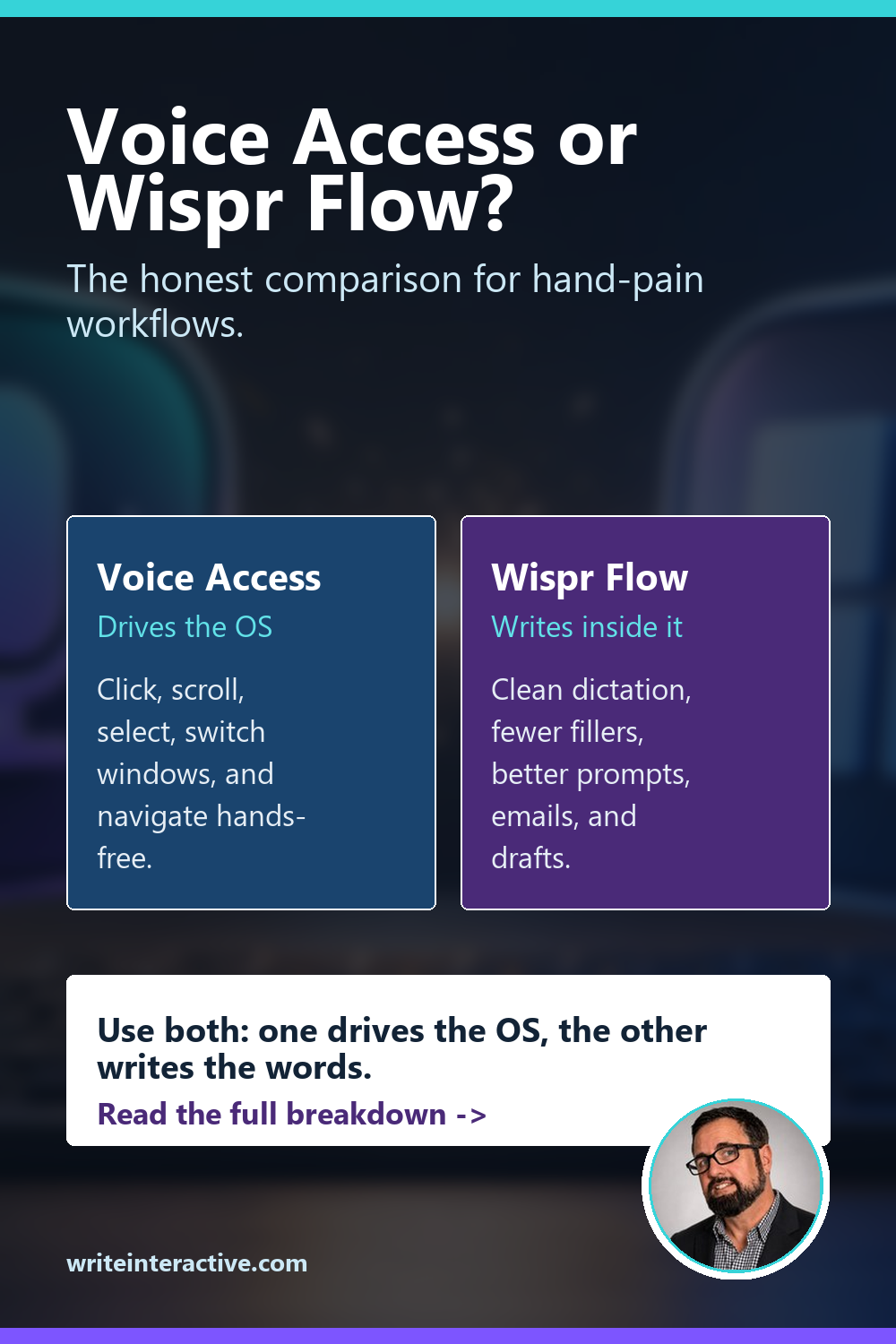
A: Not entirely. Flow replaces dictation, not navigation, on a desktop or a laptop. If you rely on voice to click, scroll, switch windows, and operate the entire desktop, keep Voice Access. Use both together; that is the right answer for most hand-pain workflows. Voice Access drives the OS, while Wispr Flow writes the actual words.
Q: Is Wispr Flow worth $15 a month?
A: If you dictate daily, yes. The Wispr Flow vs Windows Voice Access cost gap is real, but Flow's cleanup, speed, and cross-app reach pay for the subscription the first week you stop fighting your keyboard. For light dictation, the free tier is fine. For serious writing or hand pain, the Pro plan is a steal.
Wispr Flow vs Windows Voice Access Verdict
After living in both every day, my Wispr Flow vs Windows Voice Access verdict is simple:
Use Voice Access to control Windows. It is free, on-device, and excellent at the navigation and accessibility half of the job.
Use Wispr Flow to write inside it. For $15 a month, it earns its keep the day typing starts to hurt or slow you down. Pair it with Voice Access for the parts of the workflow that need clicks instead of words.
Start Wispr Flow free - 2,000 words a week on Basic, no credit card. Upgrade to Pro only if it pays for itself. Any current promo will apply automatically.
Want help with this kind of work?
We turn ideas like the one in this post into production-ready content, creative, and infrastructure.
Start a project →